GTM Fires But GA4 Receives Nothing? How a Silent 404 Kills Your Tracking (2026)
GTM tag fires, container published, GA4 still shows zero. How a 404 on gtag/js kills tracking invisibly — and the one CLI check that finds it.
Quick Navigation
GTM can show tags firing while GA4 receives nothing when the gtag/js file for your Measurement ID returns a 404 from Google’s servers — a silent failure that passes every GTM check. This happens when a GA4 data stream is deleted and recreated, leaving a stale ID in the container. One command confirms it: curl -I "https://www.googletagmanager.com/gtag/js?id=G-XXXXXXXX".
Your GTM container is published. The tag shows “Succeeded” in Tag Assistant. The GA4 data stream says “Data collection active in the past 48 hours.” Every indicator says the setup is working.
But GA4 Realtime shows zero users. DebugView is waiting for events that never arrive. Your conversion data is gone.
This is a Layer 3 (Transmission) failure caused by a silent 404 on gtag/js — and every standard check will tell you everything is fine right up until you run one specific command.
Here’s exactly how we found and fixed it for American Paint Heros.
What We Diagnosed
- GTM Fires in Preview But GA4 Realtime Shows 0
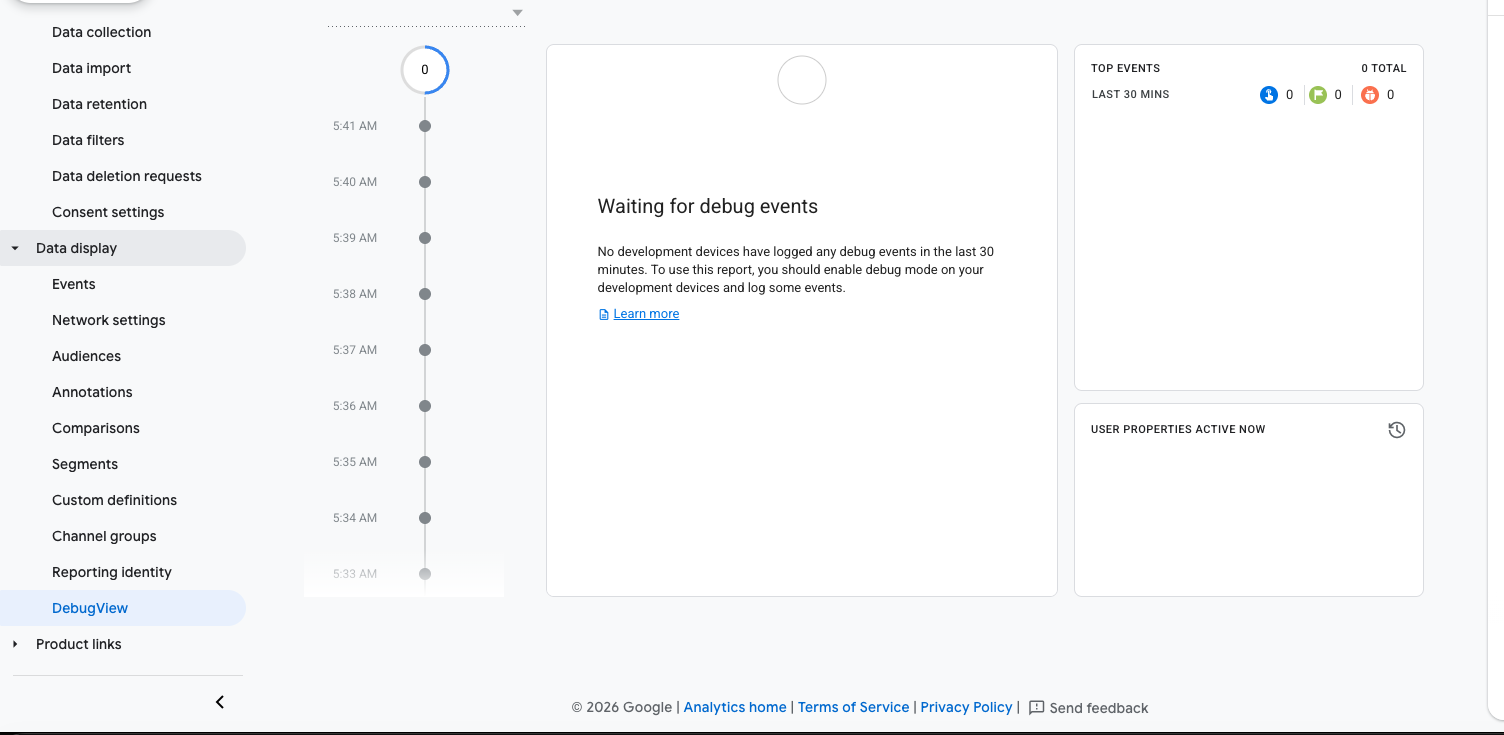
- DebugView Shows “Waiting for Debug Events”
- GA4 Says “Data Collection Active” — But It’s Lying
The Fix
- The 60-Second CLI Test That Finds the Break Point
- The Fix: Delete and Recreate the Data Stream
- Why Every Standard Check Shows Green
American Paint Heros: The Setup That Looked Perfect
American Paint Heros had recently migrated their website and set up GA4 tracking from scratch. GTM container installed in the site’s <head>, GA4 data stream created, measurement ID copied into a GTM constant variable, container published. Textbook setup.
When we ran an automated audit against their domain, the container was detected immediately:
curl -s https://americainpaintheros.com | grep -o "GTM-[A-Z0-9]*"
# GTM-XXXXXXX
GTM was live. The published container contained the correct measurement ID. Tag Assistant confirmed the Google Tag fired on initialization with status “Succeeded.” Three layers of verification — all green.
GA4 Realtime: 0 users.
GTM Fires in Preview But GA4 Realtime Shows 0
What’s Happening: GTM’s Tag Assistant marks a tag “Succeeded” when the tag’s JavaScript executes without throwing an error. It does not verify that data was actually transmitted to Google’s servers. The tag can fire, the status can show green, and zero data can reach GA4 — simultaneously.
The Diagnostic:
Open Chrome DevTools → Network tab → visit the site → filter by collect. A working GA4 setup produces a request to google-analytics.com/g/collect within 2-3 seconds of page load. If no collect request appears, the hit never left the browser.
For American Paint Heros: no collect request. The tag fired. Nothing was transmitted.
DebugView Shows “Waiting for Debug Events”
What’s Happening:
GA4 DebugView only receives hits when a device is in GTM Preview Mode or has debug_mode: true set in the GA4 configuration tag. If DebugView is empty during an active Tag Assistant session, the debug hit isn’t leaving the browser either.
The Diagnostic: With Tag Assistant active and the site open, switch to GA4 → Admin → DebugView. Events should stream in within 10 seconds of a page load. “Waiting for debug events” with an empty timeline (as shown in the screenshot above) confirms no hits are reaching the property — from any mode.
This rules out the theory that “it works in preview but not live.” If DebugView is empty during preview, the problem is upstream of GA4 entirely.
GA4 Says “Data Collection Active” — But It’s Lying
What’s Happening: The GA4 data stream status “Data collection is active in the past 48 hours” updates from any hit that reaches the property — including hits from earlier GTM Preview sessions before the container was published. Once that indicator turns green, it stays green for 48 hours regardless of whether live tracking is currently broken.
For American Paint Heros, the status was showing activity from an initial preview session three days earlier. The live setup had never worked.
The Diagnostic: Do not use the data stream status indicator to confirm live tracking. Use GA4 → Reports → Realtime and check within 30 seconds of a fresh page visit. Zero users in Realtime is the only reliable same-session confirmation that tracking is broken.
The 60-Second CLI Test That Finds the Break Point
When GTM fires but no collect request appears in the Network tab, the break point is almost always in gtag/js — the Google script that GTM loads to actually send GA4 hits. If that script returns a 404, GA4 never receives anything, and no error surfaces in GTM.
Run this one command, replacing the measurement ID with your own:
curl -sv "https://www.googletagmanager.com/gtag/js?id=G-XXXXXXXXXX" 2>&1 | grep "< HTTP"
Expected output (working):
< HTTP/2 200
What American Paint Heros had:
< HTTP/2 404
A 404 from https://www.googletagmanager.com/gtag/js means Google’s tag delivery infrastructure does not recognise that measurement ID. The ID exists in the GA4 UI, but it was never fully provisioned on Google’s backend — typically because the data stream was created but the provisioning process didn’t complete.
GTM loads the script, gets a 404, silently fails to initialise the GA4 tracking library, and marks the tag “Succeeded” because from GTM’s perspective the tag executed without a JavaScript exception. The failure happens one layer below where GTM is watching.
The Fix: Delete and Recreate the Data Stream
A 404 on gtag/js cannot be fixed by republishing the GTM container or reconfiguring the tag. The measurement ID itself is the problem — it needs to be replaced with a freshly provisioned one.
Step 1 — Delete the broken data stream:
- GA4 → Admin → Data Streams → click the web stream → scroll to the bottom → delete
Step 2 — Create a new web stream:
- GA4 → Admin → Data Streams → Add stream → Web
- Enter your domain URL
- Copy the new measurement ID (new
G-XXXXXXXXXX)
Step 3 — Verify the new ID is provisioned:
curl -sv "https://www.googletagmanager.com/gtag/js?id=YOUR-NEW-G-ID" 2>&1 | grep "< HTTP"
# Must return HTTP/2 200 before proceeding
Step 4 — Update GTM:
- GTM → Variables → find your measurement ID constant → update the value to the new ID
- Submit and publish the container
Step 5 — Confirm:
- Visit the site in an incognito window
- Check GA4 → Reports → Realtime within 30 seconds
- A page view should appear
For American Paint Heros, the new measurement ID returned 200 immediately. GA4 Realtime showed their first real page view within 20 seconds of the container being published.
Why Every Standard Check Shows Green When Tracking Is Broken
This failure pattern is unusually hard to catch because each individual check passes:
| Check | Result | Why It Misleads |
|---|---|---|
| GTM container installed | ✓ Pass | Container loads independently of whether gtag/js works |
| Measurement ID in published container | ✓ Pass | The ID is stored correctly — it’s just not provisioned |
| Tag fires in Tag Assistant | ✓ Succeeded | GTM marks success on JS execution, not data delivery |
| GA4 data stream status | ✓ Active | Updated by preview sessions, not live traffic |
| GA4 DebugView | ✗ Empty | First check that catches it — but only if you know to look |
curl gtag/js?id=G-XXX |
✗ 404 | The one direct test that finds the root cause in 60 seconds |
The lesson: always run the gtag/js curl check before any other GA4 diagnostic. It takes 60 seconds and immediately rules out or confirms the most common cause of complete data loss after a fresh GA4 setup.
Tracking setup looks right but data still isn’t flowing? Our diagnostic service identifies the exact break point across your GTM container, GA4 property, and network layer — and fixes it in a single session. Get a diagnostic.
GTM Setup Service
Google Ads and GA4 conversion tracking for local service businesses.
Running ads for a local service business?
This diagnostic is the technical version. If you're a contractor and the short version is "Google Ads says four leads and we booked nineteen jobs," we'll check all four steps on your account and tell you which one is failing.