GA4 Events Not Reaching Google? 3 Transmission Fixes That Work (2026)
Your GTM tags fire perfectly in Preview Mode, but GA4 shows no data. This is Layer 3 (Transmission) failure—where data gets lost between your browser and Google's servers. Here's how to diagnose and fix it.
Quick Navigation
GA4 events stop reaching Google when ad blockers or browser privacy settings intercept the /g/collect request, a Content Security Policy blocks outbound requests to google-analytics.com, or the Measurement ID points to a deleted data stream. Confirm delivery in the Network tab: a 204 response to /g/collect means success; ERR_BLOCKED_BY_CLIENT means the request was intercepted.
Your GTM setup looks perfect. Tags fire in Preview Mode, variables are correct, and there are no console errors. But your GA4 property is a ghost town. Zero events, zero users. This is a Layer 3 (Transmission) failure: the data is leaving GTM correctly but getting lost or blocked on its way to Google’s servers.
An enterprise client lost $300K in ad spend because of this. Their agency spent weeks rebuilding GTM, assuming it was a configuration problem. The real issue? A corporate firewall was blocking the data transmission. The diagnostic took 90 seconds once we knew where to look.
Here’s how to diagnose and fix transmission failures.
Common Transmission Failures
- GTM Shows Tags Firing, But GA4 is Empty (Blocked Requests)
- Your Data Stream is Misconfigured
- Server-Side GTM is Silently Failing
- Why Standard Fixes Fail & What Actually Works (Consent Mode)
3 Reasons Your Events Aren’t Reaching Google (and How to Fix Them)
1. GTM Works, But GA4 is Empty (Blocked Requests)
This is the most common Layer 3 problem. Your browser is actively blocking the requests to Google Analytics.
The Diagnostic (The 90-Second Fix):
- Open your browser’s Developer Tools (F12 or Ctrl+Shift+I).
- Go to the Network tab.
- In the “Filter” box, type
collect. This will isolate requests to Google Analytics. - Reload your page and trigger an event.
What to Look For:
- ✅ Status
204: Success! The request was received by Google. If you see this but data is still missing, you have a Layer 4 (Processing) problem. - ❌ Status
(failed) net::ERR_BLOCKED_BY_CLIENT: This is your culprit. A browser extension, like an ad blocker (uBlock Origin, Privacy Badger) or a corporate firewall, is blocking the request. - ❌ No requests appear at all: This often points to a Consent Mode issue where consent hasn’t been granted.
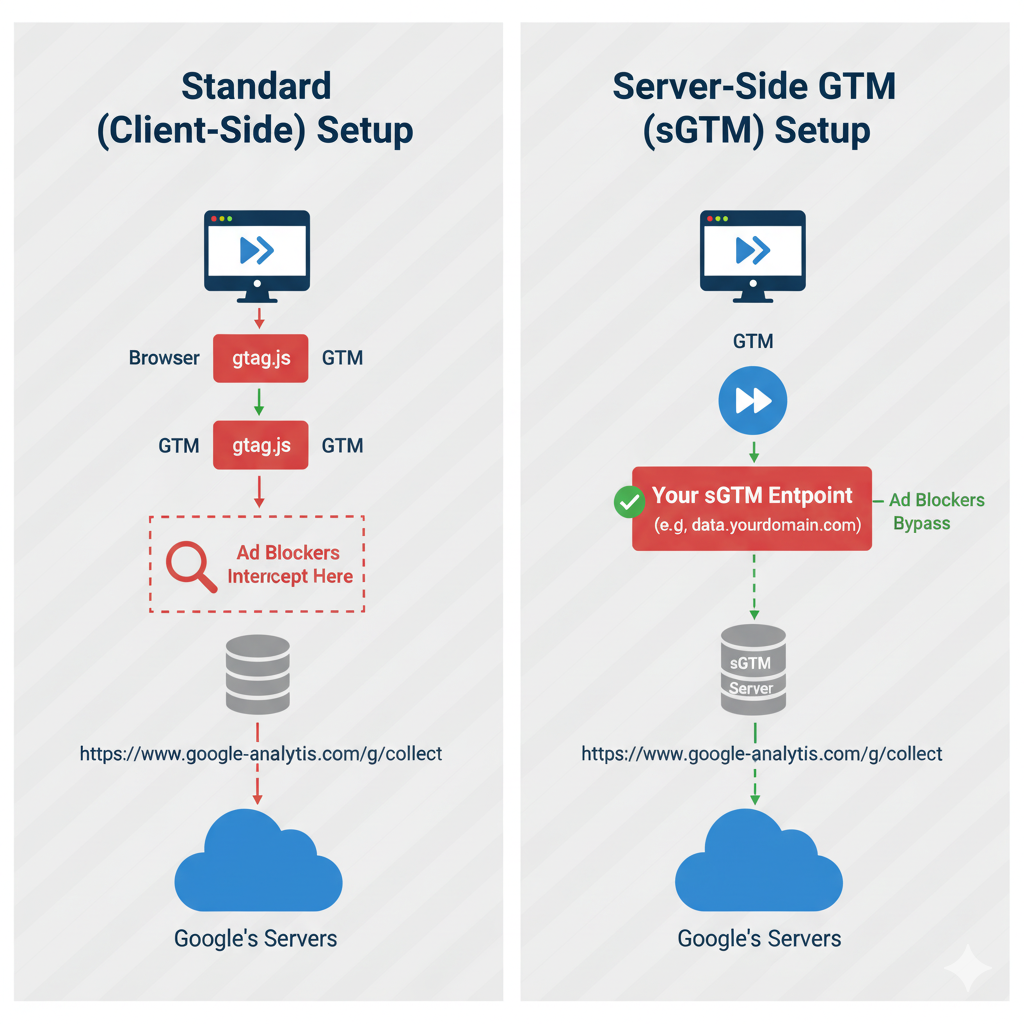
The Fix: There is no “fix” for a user’s ad blocker. The solution is to understand that 30-40% of your client-side data is likely being blocked. The only true mitigation is Server-Side GTM (sGTM), which routes data through your own domain, bypassing most ad blockers.
2. Your Data Stream is Misconfigured
Symptom: Requests are being sent with a 204 status, but the data never appears in the correct GA4 property.
What’s Happening: Your GTM tag is sending data to the wrong destination. This usually happens when the Measurement ID in your GA4 Configuration Tag is incorrect.
The Diagnostic:
- In the Network tab, click on a
collectrequest. - Go to the Payload or Headers tab.
- Look for the
tidparameter in the Query String Parameters. - Does the value (e.g.,
G-XXXXXXXXXX) exactly match the Measurement ID of your GA4 Data Stream?
The Fix:
- In Google Tag Manager, go to your main GA4 Configuration Tag.
- Correct the Measurement ID field.
- Publish the container.
This is technically a Layer 2 (Implementation) error, but it manifests as a total transmission failure to the correct property.
3. Server-Side GTM is Silently Failing
Symptom: You see successful requests to your sGTM domain (e.g., sgtm.yourdomain.com), but no data appears in GA4.
What’s Happening: The first leg of the journey (Browser → Your Server) is working, but the second leg (Your Server → Google) is broken.
Common sGTM Failure Points:
- Missing GA4 Client: The sGTM container received the data but doesn’t have a configured GA4 client to forward it to.
- Server Timeout: Your server is receiving requests but is under-provisioned and timing out before it can forward them to Google.
- Outbound Firewall Rules: Your server’s own firewall is blocking outbound connections to
google-analytics.com.
The Diagnostic:
- Open the Debugger in your Server-Side GTM container.
- Send a test event from your browser.
- Watch the “Outgoing HTTP Requests” tab in the sGTM debugger. Do you see a request being sent to Google?
- If not, the issue is with your sGTM client configuration. If you do, but GA4 is still empty, the problem is likely a server-level networking issue.
Why Standard Fixes Fail & What Actually Works (Consent Mode)
A common reason for “no requests at all” is a misinterpretation of Consent Mode v2.
What’s Happening: You’ve implemented a consent banner. Until a user clicks “Accept,” GTM is in a “denied” state. In this state, GA4 tags do not send user or event data; they only send basic, anonymous “pings.” Full data transmission only begins after consent is granted.
This is not a bug; it is the intended behavior.
However, this becomes a transmission failure if:
- Your consent banner is confusing, and users are ignoring it (low consent rate).
- Your Consent Management Platform (CMP) is not correctly firing a
consent_updateevent after the user accepts.
The Fix: Your goal is not to bypass consent, but to ensure it works correctly.
- Use your browser’s Network tab to confirm that full
collectrequests (with event data) are sent immediately after you click “Accept.” - If they are not, the problem is in your Layer 2 (Implementation) consent setup, not Layer 3.
The Network Tab Workflow: A Quick Guide
- Filter: In the Network tab, filter for
collect. - Clear & Reload: Clear the log (🚫) and reload the page.
- Interact: Trigger your key conversion events.
- Check Status: For each new
collectrequest, check the Status code.204is what you want to see. - Inspect Payload: Click the request and check the
tid(Measurement ID) anden(event name) parameters in the Payload.
If the status is 204 and the payload is correct, your transmission is working. The problem lies further down the line in Layer 4 (Processing).
Dealing with persistent transmission issues? Our diagnostic service inspects the complete data flow from browser to GA4, identifies where requests are failing, and provides a fix or detailed remediation plan. Learn more about our GTM Transmission Diagnostic.
GTM Setup Service
Google Ads and GA4 conversion tracking for local service businesses.
Running ads for a local service business?
This diagnostic is the technical version. If you're a contractor and the short version is "Google Ads says four leads and we booked nineteen jobs," we'll check all four steps on your account and tell you which one is failing.