GA4 DebugView Shows Data But Reports Empty? 4 Fixes That Work (2026)
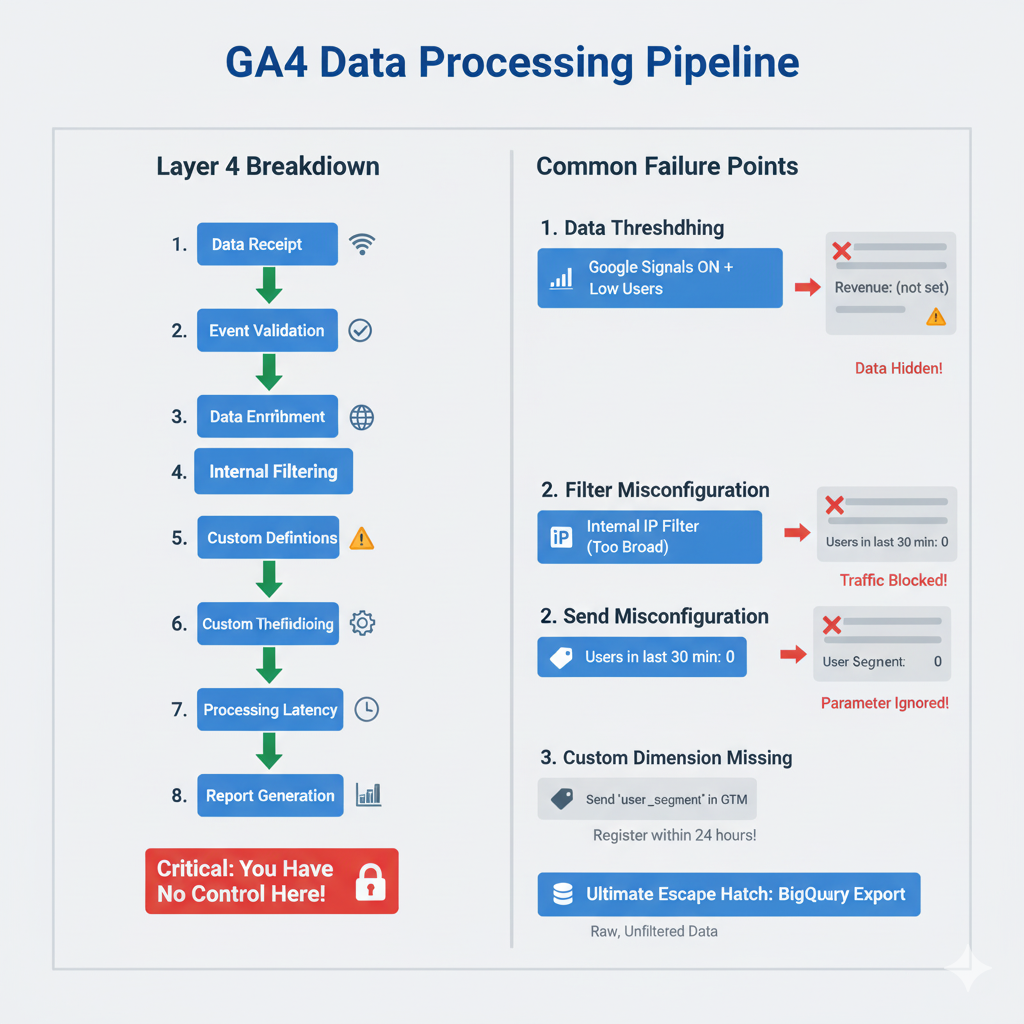
Your events appear in GA4 DebugView perfectly, but standard reports show zero data. This is Layer 4 (Processing) failure—where Google's internal systems reject, filter, or withhold your data. Here's what's actually happening.
Quick Navigation
GA4 reports stay empty despite DebugView activity when data thresholds filter out low-traffic properties, internal traffic filters block real users, the reporting identity is misconfigured, or Google’s processing pipeline has a 24-48 hour delay. DebugView bypasses all filters — standard reports apply them all.
It’s the most frustrating problem in GA4. Your GTM setup is perfect. Tags are firing. Events stream into DebugView in real-time. But days later, your reports are empty. Zero revenue, zero conversions, zero users.
You can see the data reaching Google, so why isn’t it showing up? This is a Layer 4 (Processing) failure. It means your tracking is working, but Google’s internal systems are either filtering, withholding, or rejecting your data after they receive it.
Here are the most common causes and how to fix them.
Common Causes for Empty GA4 Reports
- DebugView Shows Events, But No Data in Reports (Data Thresholding)
- Processing Delay is Making GA4 Reports Empty
- Events Appear in DebugView, But Not in Realtime Reports
- Custom Parameters are Missing from Your Reports
- The #1 Hidden Setting That Breaks Reports (Case Sensitivity)
4 Common Reasons for Empty GA4 Reports (and How to Fix Them)
1. DebugView Works, But Reports Are Empty (Data Thresholding)
Symptom: Your reports show “(not set)” or have missing rows of data, often with a small orange triangle icon next to the report title.
What’s Happening: This is Data Thresholding. If you have Google Signals enabled and GA4 detects a low user count for a specific report, it will hide the data to protect user privacy. The data exists; Google just won’t show it to you in the standard UI.
The Fix:
- Go to Admin → Data Settings → Data Collection.
- Check if “Google Signals data collection” is enabled.
- To verify this is the issue, temporarily disable it and wait 48 hours. If your data appears, thresholding was the cause.
Your Long-Term Choice:
- Option A: Keep Google Signals disabled (you lose cross-device remarketing capabilities).
- Option B: Live with thresholding and its data gaps.
- Option C: Export your data to BigQuery, which provides raw, unthresholded data (the recommended solution for advanced analysis).
2. Processing Delay is Making GA4 Reports Empty
Symptom: You just launched your tracking. DebugView and Realtime reports work, but all other standard reports are empty.
What’s Happening: This is normal. GA4 has a 24-48 hour processing latency for standard reports. The data is in the pipeline, but it hasn’t been fully processed and aggregated yet.
The Fix:
- Wait. This is the hardest part. Use DebugView and the Realtime report for immediate validation, but do not assume your tracking is broken.
- If reports are still empty after 48 hours, then you have a real processing problem.
3. Events Appear in DebugView, But Not in Realtime Reports
Symptom: Your device shows up perfectly in DebugView, but the Realtime report shows zero users and zero events.
What’s Happening: Your traffic is being filtered out. The most common cause is a misconfigured Internal Traffic Filter. DebugView shows all data before filters are applied, while the Realtime report shows data after filters.
The Fix:
- Go to Admin → Data Settings → Data Filters.
- Check your “Internal Traffic” filter. Is it active?
- Review the IP ranges. Is it possible your filter is too broad and is accidentally catching real users (or yourself, when not on a defined office IP)?
- To test, temporarily set the filter to “Testing” mode instead of “Active”. Wait 30 minutes and check the Realtime report again.
4. Custom Parameters are Missing from Your Reports
Symptom: You see your custom parameters in DebugView (e.g., item_category: "Widgets"), but when you try to use them in a report, the column is blank or shows “(not set)”.
What’s Happening: You sent the data, but you never told GA4 what to do with it. Custom parameters must be registered as Custom Dimensions in the GA4 admin before they will be processed into reports.
The Fix:
- Go to Admin → Custom Definitions.
- Click “Create custom dimensions”.
- Enter the Dimension name (e.g., “Item Category”).
- Set the Scope (usually “Event”).
- Enter the Event parameter exactly as it appears in DebugView (e.g.,
item_category). - Save.
CRITICAL: You must register a dimension within 24 hours of first sending the parameter. If you register it late, it will only apply to future data. All historical data for that parameter is lost.
The #1 Hidden Setting That Breaks Reports (Case Sensitivity)
This is the silent killer of GA4 data processing. GTM is case-insensitive, but GA4 is case-sensitive.
The Problem:
- Your GTM variable sends a currency value of
usd(lowercase). - GA4’s schema strictly expects
USD(uppercase). - Result: GA4 receives the event but discards the invalid currency value. Your reports show purchases with $0 revenue.
The Diagnostic: Run this snippet in your browser console to check for lowercase currency events.
(() => {
  if (typeof dataLayer === 'undefined') return 'No dataLayer found';
  const currencyEvents = dataLayer.filter(item => item.currency || (item.ecommerce && item.ecommerce.currency));
  if (currencyEvents.length === 0) return 'No currency events found';
  return currencyEvents.map(event => {
    const currency = event.currency || (event.ecommerce && event.ecommerce.currency);
    return `${event.event || 'unknown'}: "${currency}" ${currency === currency.toUpperCase() ? '✅ UPPER' : '❌ lower'}`;
  });
})();
If you see purchase: "usd" ❌ lower, your revenue tracking is broken.
The Fix: Go back to your GTM variables or dataLayer pushes and ensure all currency codes are in uppercase (e.g., “USD”, “EUR”, “GBP”). This also applies to event names and other parameters where GA4 expects a specific case.
The BigQuery Escape Hatch
When GA4’s processing rules (like data thresholding) hide your data, the ultimate solution is the native BigQuery export.
- What it is: A direct feed of raw, unprocessed event data from GA4 to Google’s BigQuery data warehouse.
- Why it’s better: It contains 100% of your data, with no thresholding, no filtering, and no sampling. It’s the absolute ground truth.
- How to enable it: Go to Admin → BigQuery Links and connect your GA4 property to a BigQuery project. The free tiers of both GA4 and BigQuery are often sufficient for this.
If you can see your data in BigQuery but not the GA4 UI, you have 100% confirmation that the issue is with GA4’s Layer 4 processing, not your tracking.
Need help diagnosing GA4 processing issues? Our diagnostic service reviews your complete data pipeline from GTM to GA4 reports, identifies where data is being filtered or rejected, and provides a detailed remediation plan with expected data recovery timeline. Learn more about our GA4 Processing Diagnostic.
GTM Setup Service
Google Ads and GA4 conversion tracking for local service businesses.
Running ads for a local service business?
This diagnostic is the technical version. If you're a contractor and the short version is "Google Ads says four leads and we booked nineteen jobs," we'll check all four steps on your account and tell you which one is failing.