fbclid in the URL But GA4 Shows Direct? Cross-Domain Tracking Fix That Works (2026)
fbclid in the URL but GA4 shows direct traffic. The exact GTM cross-domain fix that preserves Facebook source attribution across domains.
Quick Navigation
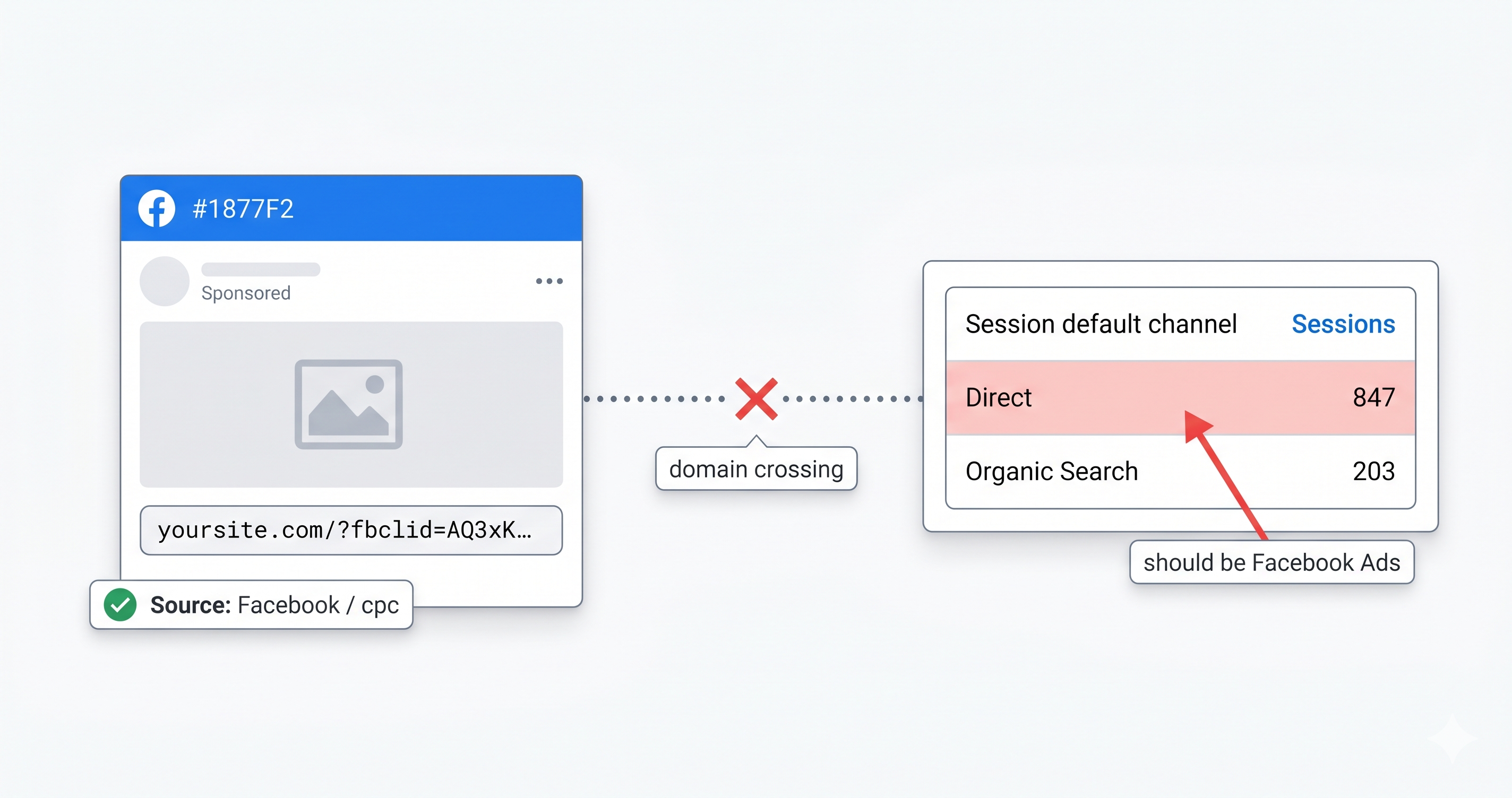
When fbclid is in the URL but GA4 shows the session as “direct,” you’ve got a cross-domain measurement failure — not a Facebook problem. The fbclid correctly identifies the first session as Facebook traffic. That attribution breaks when the user crosses to a second domain (a separate checkout, a booking platform, a subdomain) and GA4 treats it as a fresh session from nowhere. Two settings fix it: cross-domain measurement in GA4 Admin, and linked domains in your GTM GA4 configuration tag.
You run Facebook ads. Users click, fbclid appears in the URL. GA4 Realtime shows the session — source correctly attributed to facebook/cpc. Then they proceed to checkout, or a booking page, or your Shopify store. That session lands in GA4 as “direct / none.”
Your Facebook attribution is split across two sessions on two properties. The conversion goes to direct. Your ROAS calculation is wrong. Your optimization decisions are based on garbage data.
This is a Layer 2 (Implementation) failure. The tags are configured, the data is flowing — the cross-domain handoff is just not wired up.
What You’re Seeing
- fbclid in URL, GA4 Session Shows Direct or None
- GA4 Shows Two Sessions for the Same User Journey
- The Referral Exclusion Fix You Found Online Doesn’t Work
The Fix
- GA4 Admin: Configure Cross-Domain Measurement
- GTM: Linked Domains in GA4 Configuration Tag
- Verify the _gl Parameter Is Actually Appending
- Optional: Capture fbclid as a GTM Variable
fbclid in the URL, GA4 Session Shows Direct or None
What’s Happening:
GA4 reads the fbclid parameter on landing and correctly attributes the session to facebook / cpc. That attribution lives in the session on Domain A. When the user clicks through to Domain B, GA4 on Domain B initializes a new session — it has no way to know this user came from Facebook 30 seconds ago on a completely different domain. It sees no referrer it can use, so it records direct / none.
The fbclid did its job. The attribution failure is a cross-domain measurement gap, not a Facebook tracking problem.
The Diagnostic: Open GA4 → Reports → Acquisition → Traffic Acquisition. Filter by your checkout domain URL. Look at the Session Default Channel Group column. If you see “Direct” dominating traffic for a domain that users only reach by clicking through from your main site, you have a cross-domain measurement gap.
Confirm it by going to GA4 → Admin → Data Streams → click your web stream → Manage → Configure tag settings → scroll to “List unwanted referrals.” If your checkout or secondary domain is not in the cross-domain measurement list, this is your problem.
GA4 Shows Two Sessions for the Same User Journey
What’s Happening: Without cross-domain linking, every domain crossing creates a new session. A user clicks a Facebook ad on your main site, views a product, proceeds to your Shopify checkout — that’s three potential session breaks: main site load, Shopify domain load, and the payment provider redirect back. Each one can wipe attribution.
In practice you’ll see inflated session counts, unusually high bounce rates on checkout entry pages, and conversion paths that show “direct” as the penultimate step before purchase.
The Diagnostic: GA4 → Reports → Advertising → Attribution → Conversion paths. Look at the paths that end in a purchase. If you see “facebook / cpc → direct” as a common pattern, the last touch before conversion is being misattributed. Your Facebook campaigns are generating the intent; “direct” is getting the conversion credit.
The Referral Exclusion Fix You Found Online Doesn’t Work
This is the advice that’s everywhere. “Add your domain to the referral exclusion list.” It solves a different problem.
Referral exclusions prevent GA4 from overwriting an existing session when a user returns to your site from a self-referral — like bouncing back from a payment gateway. That’s useful, but it doesn’t preserve fbclid attribution across a domain that GA4 doesn’t know is part of the same user journey.
If you’ve already added your checkout domain to referral exclusions and the attribution is still broken — that’s why. You need the cross-domain measurement feature, not referral exclusions. They’re not the same thing.
Fix 1: GA4 Admin — Configure Cross-Domain Measurement
This is where you tell GA4 which domains belong to the same user journey. When a user crosses between these domains, GA4 treats it as a continuous session and carries the original source attribution forward.
Step 1 — Navigate to tag settings: GA4 → Admin → Data Streams → click your web data stream → Manage → Configure tag settings
Step 2 — Add cross-domain domains: Click “Configure your domains.” Add every domain that’s part of your user journey:
- Your main site (e.g.,
yoursite.com) - Your checkout domain (e.g.,
checkout.yoursite.comoryourshopifystore.myshopify.com) - Any booking or scheduling platform that users complete actions on
Step 3 — Save and verify the format:
Domain entries should be plain domains without https:// or trailing slashes:
yoursite.com
yourshopifystore.myshopify.com
bookingsystem.com
This alone won’t fix it if GTM is managing your GA4 tag. The GA4 configuration tag in GTM also needs to be updated.
Fix 2: GTM — Linked Domains in GA4 Configuration Tag
If you’re deploying GA4 through GTM (which you should be), the cross-domain configuration has to exist in two places: GA4 Admin AND the GTM tag. The GA4 Admin setting tells GA4 how to interpret the _gl parameter. The GTM tag setting is what actually appends the _gl parameter to outbound links in the first place.
If you only do the GA4 Admin step, _gl never gets appended and nothing changes.
In GTM:
- Open your GA4 Configuration tag (the one that sets your Measurement ID)
- Scroll to “Fields to Set” or find the “Configuration Settings” section depending on your tag version
- Look for “Cross Domain Tracking” — for newer Google Tag versions, this is under “Configure tag” → “Domains to add linker parameters”
- Add your destination domains — same list as above
- Submit and publish the container
For Google Tag (gtag-based setup): If you’re using a Google Tag instead of a GA4 Configuration tag, the setting is under the tag’s configuration → “Domains to add linker parameters.” Same domains, same result.
Verify the _gl Parameter Is Actually Appending
Once both settings are saved and the container is published, this is the 90-second check that confirms it’s working.
Step 1 — Open GTM Preview Mode on your main site.
Step 2 — Click any link that points to your checkout or secondary domain.
Step 3 — Look at the URL bar on the new page.
A working cross-domain setup appends a _gl parameter to the link before the user follows it:
https://checkout.yourshopify.com/cart/add?_gl=1*abc1def*_ga*12345678.1234567890*...
The _gl parameter is a base64-encoded client ID. GA4 on the destination domain reads this parameter, recognizes the client, and continues the session — preserving the original Facebook attribution.
No _gl parameter means the linker is not firing. Go back and confirm:
- The destination domain is listed in GTM’s GA4 config tag linked domains
- The container is published (not just saved)
- You’re clicking an actual
<a href>link — GTM’s linker only decorates standard anchor clicks, not JavaScript-initiated navigation
_gl present but attribution still breaking:
If _gl is in the URL but GA4 still shows a new session, the destination domain isn’t in the GA4 Admin cross-domain list. That’s where the other half of the configuration lives.
Optional: Capture fbclid as a GTM Variable
If you want fbclid available as a dimension in GA4 (useful for matching Facebook ad IDs against your own data), capture it as a URL variable in GTM and send it with the page_view event.
In GTM — create a URL variable:
- Variable Type: URL
- Component Type: Query
- Query Key:
fbclid - Variable Name: something like
URL - fbclid
In your GA4 Configuration tag — add a field:
- Field Name:
fbclid(or a custom dimension name you’ve registered in GA4) - Value: ``
This writes fbclid into every GA4 hit on page load. When fbclid is absent (non-Facebook traffic), the field is empty — that’s fine.
To see it in GA4 reports, register it as a custom dimension: GA4 → Admin → Custom Definitions → Create custom dimension → Scope: Event → Event parameter: fbclid.
This is optional. Fix the session attribution first. The variable capture is useful once attribution is accurate and you want granular ad-level data inside GA4.
Why Standard Attribution Advice Gets This Wrong
The confusion comes from conflating three separate fbclid problems that require three different fixes:
| Problem | Cause | Fix |
|---|---|---|
| GA4 shows “direct” on second domain | Cross-domain measurement not configured | GA4 Admin + GTM linked domains |
| fbclid session overwritten by self-referral | Missing referral exclusion | Add domain to referral exclusions |
| fbclid stripped by iOS / privacy browsers | Browser-level parameter removal | Conversions API (server-side) |
| fbclid not visible as dimension in GA4 | No custom dimension configured | GTM URL variable + GA4 custom dimension |
These are four different failure modes. Referral exclusions solve the second one. Cross-domain measurement solves the first. If iOS is stripping fbclid before it hits your site, no client-side GTM configuration fixes that — you need Meta’s Conversions API sending server-to-server events from your backend.
Most advice treats these as the same problem. They’re not. Identify which one you have before touching anything.
Your Facebook attribution is telling a different story than your ad manager? We audit the full GTM-to-GA4 tracking chain — cross-domain configuration, fbclid capture, referral exclusions, and conversion event accuracy — and fix what’s broken in a single session. Get a diagnostic.
GTM Setup Service
Google Ads and GA4 conversion tracking for local service businesses.
Running ads for a local service business?
This diagnostic is the technical version. If you're a contractor and the short version is "Google Ads says four leads and we booked nineteen jobs," we'll check all four steps on your account and tell you which one is failing.